
Credit Card Wallet
The Grand Central Wallet will create the ability for owners to use and store credit cards for future reservation payments. Credit cards added to the wallet will be available for use in Grand Central as well as TSW reservations.
Owner FAQs
When can I access my Grand Central Wallet?
Starting Tuesday, May 3, 2022, you will have the option to save credit and debit cards for future use on Grand Central in your Grand Central Wallet.
Do I have to save my cards?
No, you do not have to save your cards. Each time you enter a payment, you will have to option to “Save Card” for future use. Simply do not check this option, and your card will not be saved.
Where can I manage my cards saved?
You will be able to find all of your saved cards under Ownership, Account, and Credit Cards tab. You can add and delete cards in this tab.
What can I use my saved cards for?
You can use your saved cards for Bonus Time reservations, reservation cancellation fees, and some additional bookings with the Owner Relations team.
Who has access to my wallet?
Anyone with access to your Grand Central account will have access to any cards you saved for future use. We suggest updating your password if you would like to limit who has account access.
BGV booking agents will also have access to use these cards as payment. They will not have access to details such as whole card numbers or CVV codes on cards as these cards are encrypted and tokenized.
If calling in to make a reservation, BGV agents will not allow anyone outside of the account holder to use cards saved as payment; this includes co-owners and children. We recommend that anyone listed on the deed takes this opportunity to create their own personalized Grand Central account if they wish to save payments for future use.
Can I delete a saved card?
Yes, you can easily delete saved cards in your Grand Central Wallet. Go to Ownership, Account, and Credit Cards tab. Find the card you would like to delete and click the trash can icon on the card. Simply confirm you would like to delete the card, and it will be removed from the system.
Are my cards secure?
Yes, BGV does not actually store any credit card information. The TimeshareWare application utilizes SecurePay with Shift4 to encrypt and store tokens that will allow you to use this payment only inside BGV’s systems.
I’m having trouble signing in.
If you’re having trouble logging into your account, here are a few things to try first:
- Forgot your username? Click “I forgot my username” and enter the email address and owner number associated with your account and you will be emailed your username.
- Forgot your password? Click “I forgot my password” and enter your username and you will be emailed a link to reset your password.
If you are still unable to sign in after reviewing the troubleshooting tips above, contact the Owner Relations department at 877-453-4440.
Grand Central
Wallet
Credit card will be stored in a Grand Central Wallet for owners
- You will find this under Ownership > Accounts > Credit Card Tab
- All credit cards added to the wallet will be auto-populate to ANY future reservation made in GC or TSW
- Any card deleted from the Grand Central Wallet will also be deleted from their TSW Customer Card
- This does not delete the card from any current pending reservations in TSW
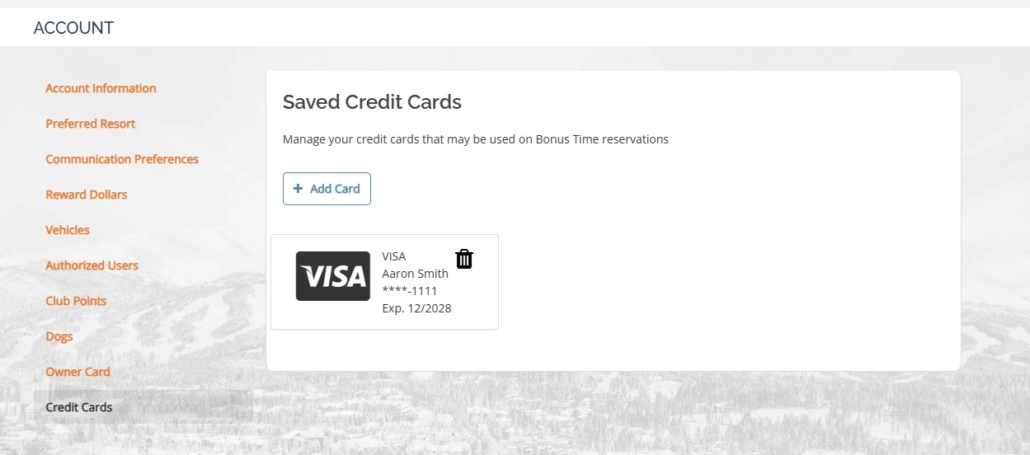
Owners Wallet will be stored under Ownership > Accounts > Credit Cards
Any card stored here will be available for use on ANY reservation in Grand Central or TSW going forward.
Owners can add a new card here.
Owners can also delete and manage cards here.
Bonus Time
Any credit card that currently exist in the Grand Central Wallet will be available for use for payment
- A new card can be added for payment during the booking process
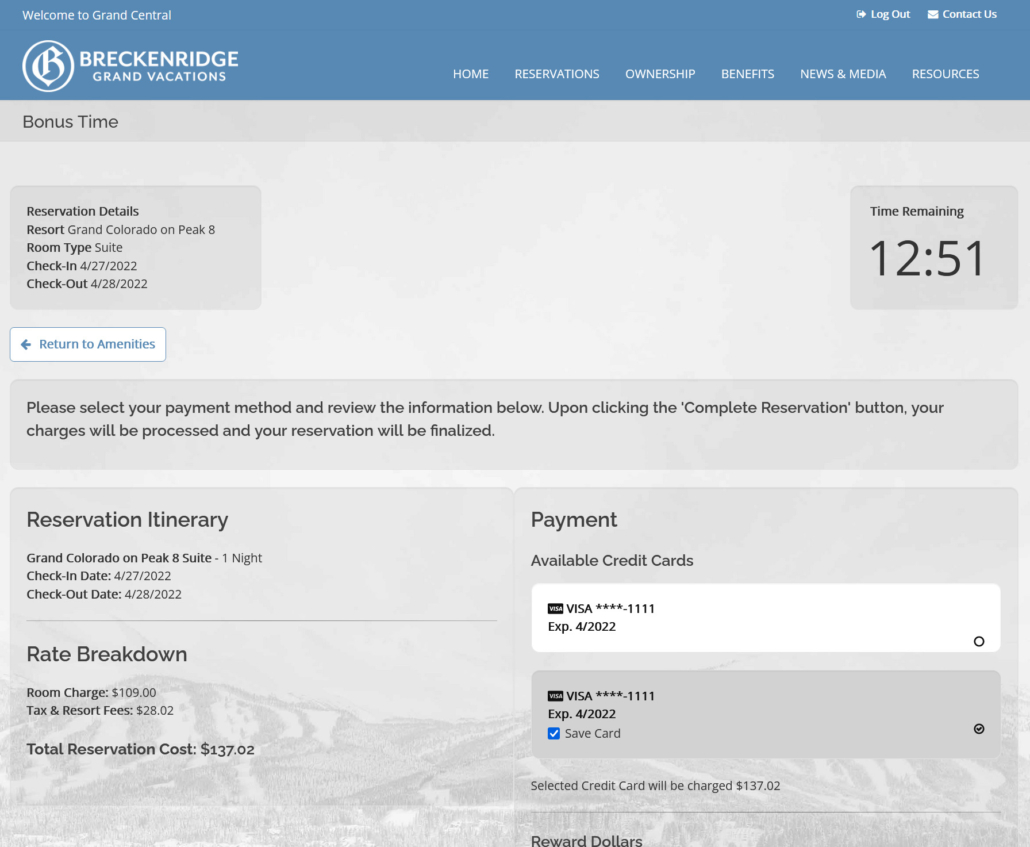
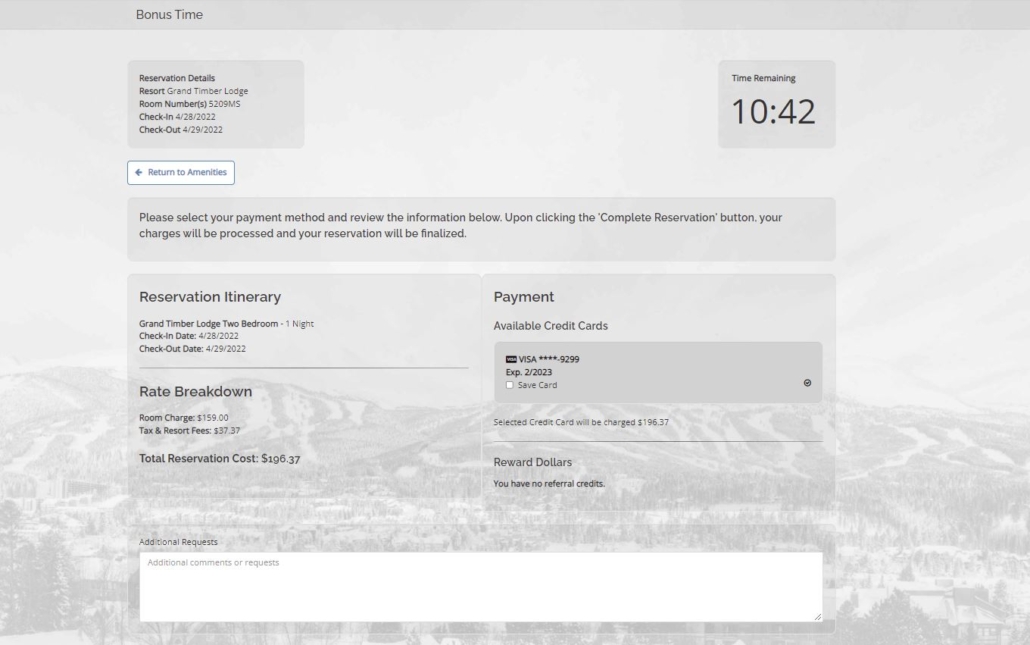
- Any card added during the booking process will have the option of being “Saved” for future use
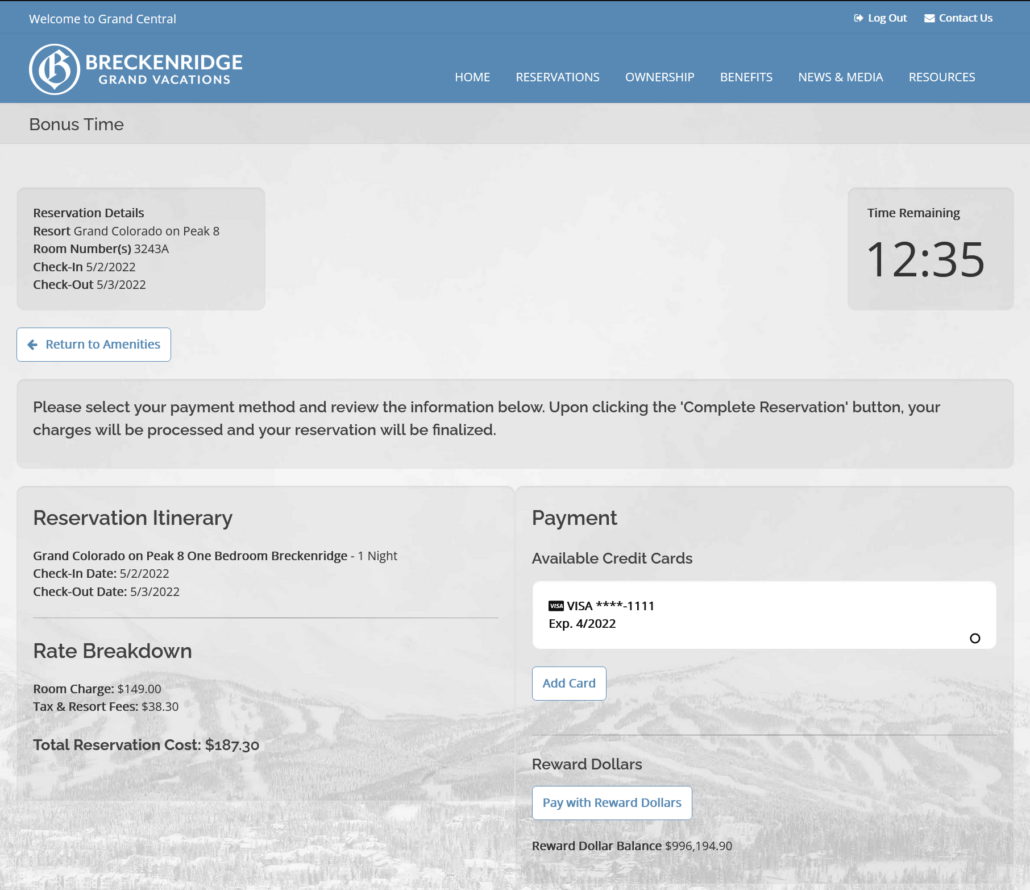
Any credit card they have added to Grand Central will populate for use.
Owners can add a new card during the payment process. This card will be added to the wallet.
Owners will select the card they would like to pay with by clicking anywhere on the card.
Saving Cards for Future Use via Bonus Time Booking
TSW
Customer Card: Personal Data
Credit Cards will be stored under the Personal Data tab in the TSW Customer Card
- The Reservation Box must be checked on the credit card for any reservation use
- Credit cards can not be added to existing reservations, they can only be setup auto-populating on future reservations
- Any credit card added via the Grand Central Wallet will have the Reservation Box checked
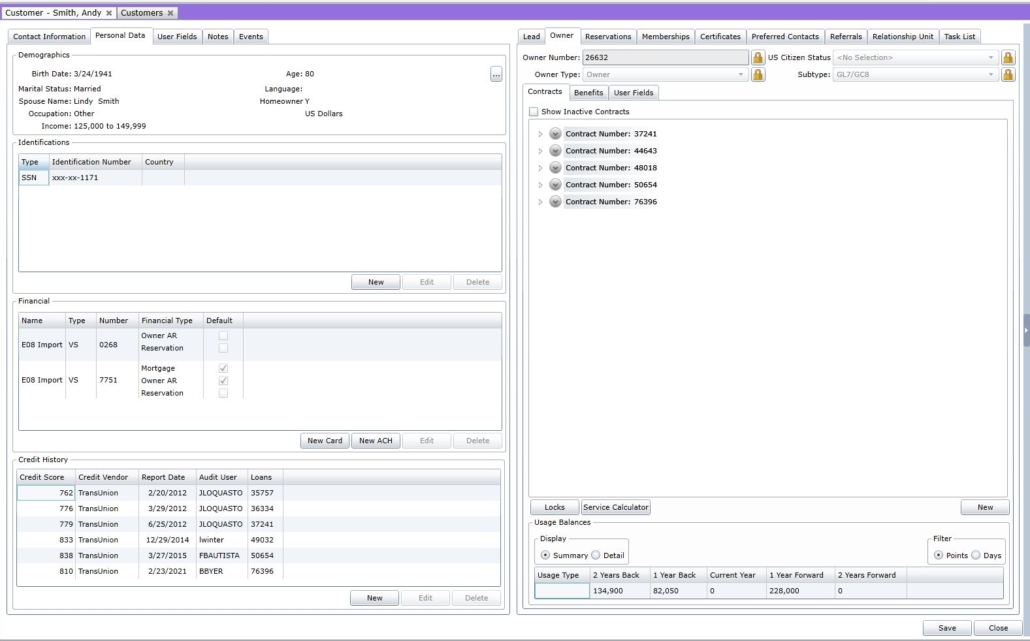
Credit cards are stored under the Personal Data tab of a Customer Card
You must select a card and then click the Edit button or Delete to make any modifications.
Cards deleted from TSW will also be deleted from Grand Central.
You must hit SAVE at the bottom of the Customer Card for any modifications to the credit cards to be saved.
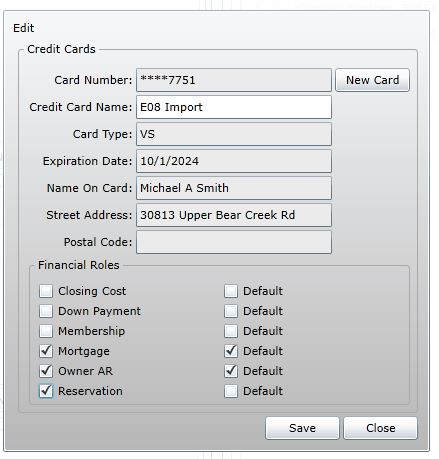
The Reservation box MUST be checked for a credit card to auto-populate on a reservation.
- This box must be checked PRIOR to the reservation being made to add a card. You can not add a card to an existing reservation.
All credit cards added via the Grand Central wallet will have the reservation box checked.
Credit Card in Reservation
Credit Cards with the Reservation Box will be auto-populated in all reservations, but you will not be able to take payment without modification
- The Use Box on Credit Cards will need to be selected before it can be used for payment
- Agents will need to make sure the are selecting the correct folio to be used with
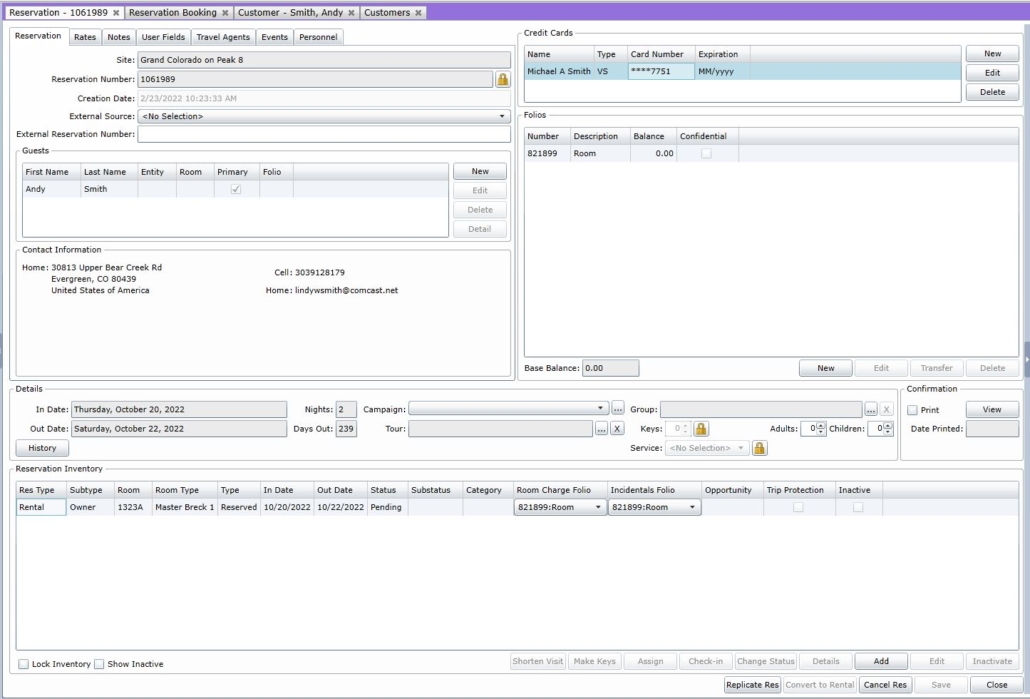
Any credit card that has been added to the Grand Central Wallet/Has the Reservation box checked will populate here for use.
The credit card CAN NOT yet be used for any form of payment. It must first be modified using the Edit button.
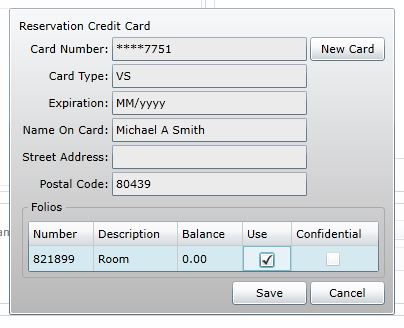
The Use Box will start out blank. To take payment with a credit card the Use Box MUST BE checked.
- If there are multiple folios, agents will need to make sure they are selecting the correct folio for use.
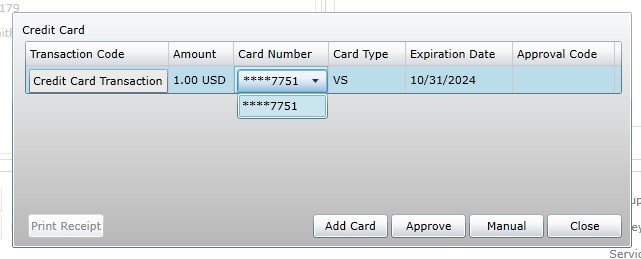
After checking the Use Box in the Credit Card, it will now populate for payment use in the folio. If multiple cards were selected for use, they will all display as options in the dropdown.